Planner
The following is a rough guide for you when planning your website. Read each section and discuss your specific needs and timeline with us so that you can start planning work into your calendars.
Of particular note is the information about planning for your training
Please note that we are not responsible for external links.
How long does it take?
If you want a site based on something we’ve already done, we can create this far quicker than a bespoke site.
Focused clients with minimal stakeholders can take a site from design to launch very quickly, but if you prefer to reflect on decisions or have multiple external stakeholders,1 it can be harder for them to combine their diaries, so you may need to set a more considered pace.
If you have a specific date for launch, you must confirm this with us so that we can plan key deadlines with you and block out calendar time for each person in the team to carry out the work. Doing this means that we ask you to adhere to the timeline specified. If you miss a date, then we cannot guarantee the original deadline, as we will have planned your project into our schedule, and once things move off-track, we need time to review each part of the process to ensure it doesn’t conflict with other scheduled work.
The planner noted on this page follows a 12-week schedule, but each site is unique, so the actual duration varies on several factors, such as:
- Complexity
- Functionality
- Off-the-shelf vs. Bespoke
- Decision-making speed
- Number of stakeholders
- Ability to meet deadlines
Stages of the process
The main stages of building a website are:
- 1. Design
- 2. Build (including snagging and testing)
- 3. Training
- 4. Population
- 5. Launch / Go Live
Each stage relies on the one previous being completed. The creation of website content (e.g. pages) is not noted above as this isn’t considered a stage, but rather part of your everyday life now.
In the first three stages above, it’s a project for us, and you’ll email projects@cs.isarriving.com.
Once you’re trained, we’ll switch all communication to support@cs.isarriving.com so you can access the correct people and receive timely responses.
Both email inboxes are monitored, but while you are populating your site, you’ll require a quicker response time, and the ‘support’ inbox is checked more regularly. If you’ve paid us to populate your site, we’ll use support@cs.isarriving.com to contact you.
Before our first meeting
You’re preparing for a kick-off design meeting with us, and before this happens, we’re already asking that you start work!
Action for you take:
1. Decide what you want to achieve from your new website.
Make a list – is it new clients, increased awareness, updated technology, or functionality (e.g. forms that collect information, or links to your social media)?
2. Consider your site’s potential users and what difficulties they experience.
You might want to create a persona or some user journeys. We have some details about User Journeys on Optra (you will need permission to view this page – please ask us about the guides on Optra)
3. Have a play on lots of websites!
To have a feel for the design direction, we want stakeholders to email us their likes/dislikes so that we come to the meeting with an understanding of your combined preferences.
- Websites you like, and the reasons why you like them.
- Websites you don’t like, and reasons why you don’t like them.
- Features or design elements you are keen on, e.g., fonts, colour schemes, illustrative or photographic styles.
These websites can be similar in purpose to yours, or from a completely unrelated industry/field – what matters is that you loved or loathed them. Below are examples of what will be helpful:
Dislikes:
https://www.badlydesignedwebsite.org.uk/ – No images to break up the text. No icons. Too much text.
https://www.terriblewebsite.com/ – I had to click lots of things before I got to the product. Overly complex to find what I wanted, and the font was hard to read.
Likes:
https://www.somethinglikethebbcsite.co.uk – “I liked this site as the images were bold and uncluttered. The colours were muted and tonal. The menu was simple and the coloured panels divided up sections of content.”
https://www.everyonelovestheapplesite.com – “I love a clean and uncluttered site.”*
*Please note that part of what makes the Apple website so desirable is the sleek images and minimal text because you already know a great deal about the product before you get to the site. If your site is to display a large variety of unrelated information that requires extensive details when a user first sees it (e.g., title, date, cost, description, etc) then inspiration from the Apple store will be limited to ‘clean and uncluttered’
4. Send us your branding and logo packs.
We’d like to see them ahead of time so we can discuss them at the first meeting. Please email them to projects@cs.isarriving.com and let us know about any existing branding/illustrations/photography/content you specifically love or loathe on your site.
5. Decide who will come to the meetings.
We’re likely to have three meetings during the design phase. You might have external stakeholders to consider, so you’ll need to find the right balance – too many people and you have ‘design by committee’, too few and you might miss out on valuable input.
6. Decide who will be the SPOC (Single Point of Contact)?
We know from experience that good communication with clients is vital, and trying to liaise with more than two people on your team and read multiple answers from each entity to determine your final decision leads to miscommunication. You should have in-house discussions to ensure you agree, then a single point of contact can email us with comments.
7. SPOC Email
Larger entities typically set up an email account that all your stakeholders can read and reply to, so you only use one email address to contact us (for instance: website@yourdomain.com), and this ensures no one is omitted and has the full audit trail of communication. This email address is typically used for the website at a later stage (for instance, to alert you to new orders and ‘contact us’).
During the project phase of your website (design, build, training), our team will email from projects@cs.isarriving.com
Deadlines
We understand that there may be times when clients can’t meet deadlines. When a project needs to pause, whether due to health reasons, stakeholder decisions, or other external factors, we’ll adjust our schedule accordingly, bringing forward other clients who are ready to move ahead or have requested to expedite their timelines when possible. Please note that when you’re ready to resume, your project will be added back into our schedule based on current availability, which may mean waiting until we’ve completed work already committed to other clients. This helps ensure fairness to those whose timelines we’ve adjusted in your absence. We appreciate your understanding.
Week 1
Design Meeting:
We have the first design meeting and get to know you. We discuss the material you’ve previously sent us (your likes and dislikes, any branding and logo material), then your needs and the functionality you require (e.g. forms, shopping, login/sign-ups, etc) and talk about how you see yourself and any competitors. Typically, this meeting takes about 2 hours.

Action for you take: Content
You probably thought you could sit back and rest while we did our creative work. However, now is the time for you to consider your content, and plan so that you create enough to populate the site after training. Depending on the size of your site and its purpose, you should consider creating 3-5 pieces of content a week (if you’re an eLearning site, then you might want to consider increasing this amount).
Content won’t only be created by the team that joins us for meetings – you must talk to each part of your team so that they create content too (it might be a small bio about themselves, or it could be a page on what they do day-to-day).
In an ideal world have someone who isn’t creating content! That person’s role is to oversee all the pages that go onto your site to check the consistency of style. The pages on your website are your ‘voice’, so look out for continuity of:
- Brand Tone and Voice
- Language – terminology that you use every day isn’t commonplace for many people, so you check the Plain English Guides
- Images and Illustrations – do they represent the content and sit well together on a listing page?
- Correct use of bullet points, numbered lists, block quotes, separators, accordions, etc
Action for you take: Did you engage us to populate your site?
If you are paying us to populate your site, we’ll need to arrange a deadline for all your finalised content, as we’ll need this sooner than if you’re populating the site yourselves.
Top Tip: Keep it simple
Write down what you want to tell your users. It’s better to be clear than clever, so focus on communicating your message; your core belief, method, product, or idea.
1. Decide what pages you’ll have on the website, and where they will sit in the menu.
An ideal – and free – tool for this is Gloomaps. They suggest that you go back to the URL of the Gloomap you created every 2 weeks to avoid the information being wiped.
We created an example gloomap to show you what a random site might look like.
If you’re part of the consortium, then have a look at a Gloomap based on a portion of The Hub by Leicester Diocese
- Pink items are top-level menu items
- Dark purple items are Themes
- Light purple items are Topics
- White items are products
Boxes with a grey, turned corner have a note inside that can typically be seen on the right – it might be a link to the page or product or a comment about the type of content seen within something (eg – click on the pink box ‘Hi (username)” and you’ll see some notes about the typical content seen.
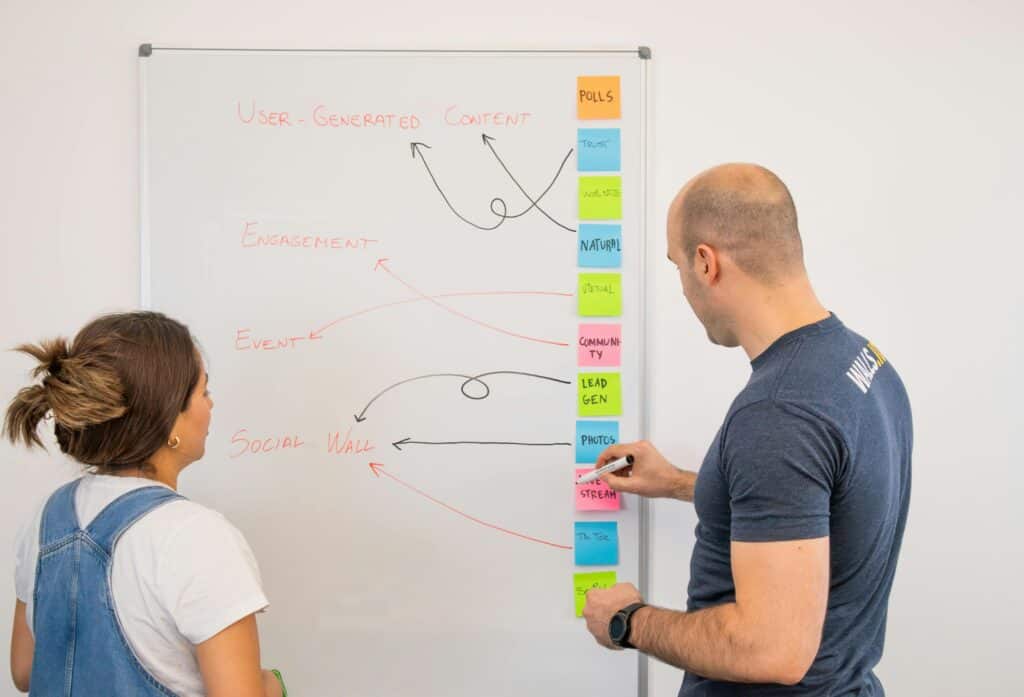
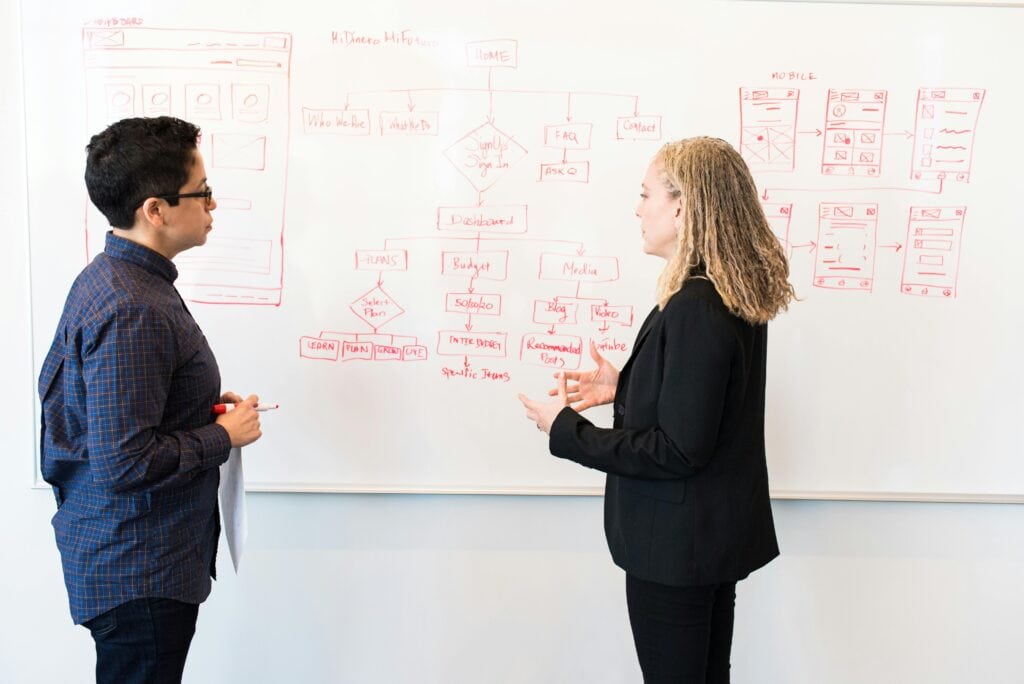
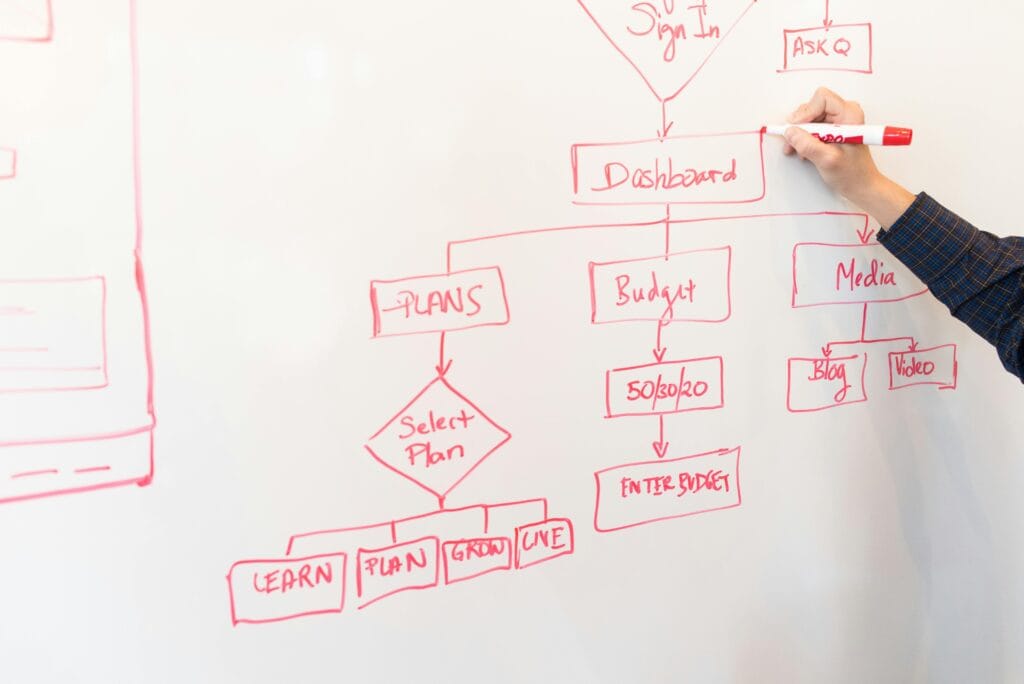
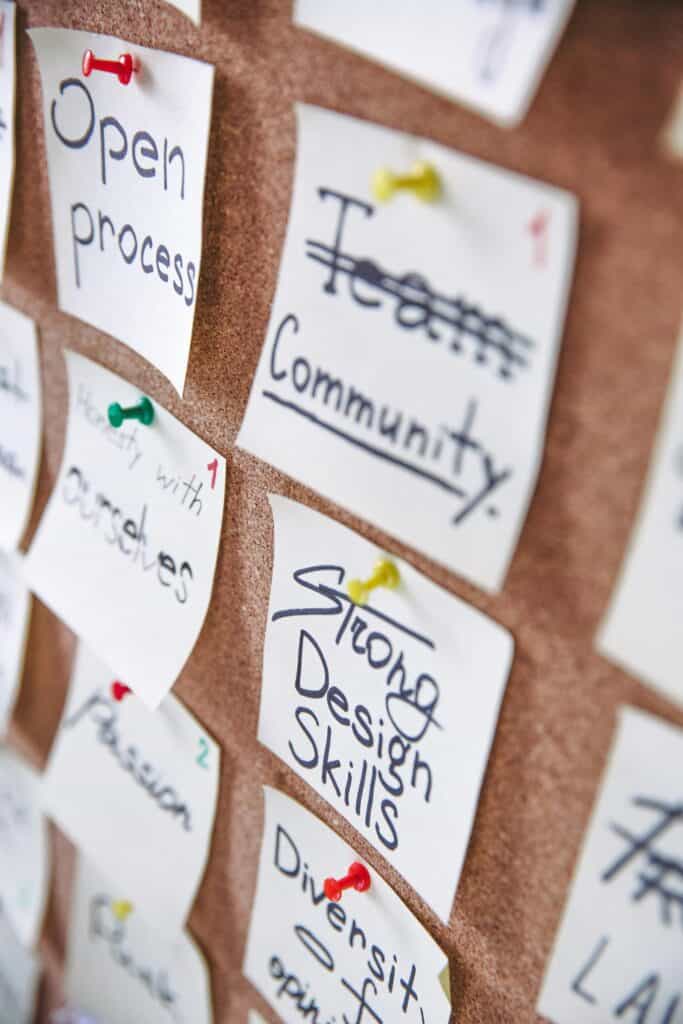
You might also find that brainstorming with your team and many Post-it notes on a whiteboard works for you.


2. Review the standard pages that most websites have.
We have a page that will encourage you to review the pages you should consider and you should add their likely location to the Gloomap you create.
3. You need to create content that is unique to your site. We can’t tell you what to write, but:
- If you sell a physical product (for instance, honey) then you need to start writing about what you do, where the product comes from, how you package it, where people can find it, your beginnings as a company (maybe a timeline), why your product is amazing.
- If you have an eLearning site, then you must start creating content about your ‘products’ (events, courses, resources, blogs, videos, etc)
- If you have a GP site, then you need to create pages that explain how patients can see a doctor (e.g. the booking process, home visits, triage)
- If you have a Parent Carer site, then you need to focus on what services you offer to the community, the events you have, a list of local resources people can access, etc.
It always seems like you have lots of time (you don’t) and that you’ll have no trouble meeting the deadline (you will), and you probably don’t think you need to diarise things (you should).
4. You need to be mindful of making your content accessible.
We have a page with links to guidance that will prompt you to think about Accessible Content Considerations
5. E-learning WordPress CMS websites might benefit from a Content Creation Kit, so please ask us about it.
There will be words, phrases, acronyms, and brand/supplier names
that you’re not familiar with, so we created a Glossary page with links to assist.


Week 2
Action for you take: Third-party services
1. Third-party services
If you intend to use these (e.g., Stripe, Moodle, a transactional email service for newsletters, MailChimp, etc) then we have a page about 3rd party services
2. Google Analytics (GA4)
This is a 3rd party service. You should determine your current position regarding GA4 by reading more in the section called ‘Google’ on the page ‘3rd party services’
We have a page with FAQs about GA4 Google Analytics If you already have a GA4 code then it’s usually advantageous to give us full account admin permissions so that we can do our work (and if you ever get locked out, we can help you regain admin permissions again).
3. Moodle.
This is a 3rd party service. If your site is linked to eLearning, you should ensure that you
- Book training (unless you are already confident with it) with your provider.
- Create content for the Moodle site.
If we are integrating to your site, then after we have admin there is very little that we’ll need to contact you about. We’ll set up any SSO (Single Sign On) or auto-enrolment that’s required.
If we are styling your Moodle site, then we’ll discuss themes with you (e.g., Lambda, Space, New Learning, Edumy). Some of them are free, and some are paid for. Popular ones are Lambda and Edwiser’s REM UI.
4. Stripe
This is a 3rd party service. If your site takes payments, you’ll need to start the process of applying now, as it can take some time. We have a page about 3rd party services so please make sure that you take action.
We have some more details about Stripe on Optra (you will need permission to view this page – please ask us about the guides on Optra)
5. Images
You should be finding images to go with your content. The following might be suitable places:
- https://unsplash.com/ and you can read the license
- https://www.pexels.com/ I like this site as you can filter the results by colour. Read the license
- https://nappy.co/ Representation matters, and the two sites noted above can lack diversity. Read the licence
IMPORTANT:
- Please make sure that you are using ‘alt text’ with images, to ensure you meet legislation about accessibility
- You CANNOT screenshot or download images from Google, other people’s websites, or documents (eg PDFs on the web). It is your responsibility to ensure the images on your website do not infringe any copywriter, license, etc. You risk a heavy fine if you use images without consent.
6. Keep creating content – we’ll require 6 pages.
You can find information and examples of this in the accordion ‘Weeks 7-8 (build stage starts)’
We like to test the site during and after the build phase with actual content, so ensure it’s ready for us. You’ve probably got two weeks before we need something. Ideally, it will be from different areas of your site (e.g., News, Events, About Us, Meet the Team, Support), and if you have an eLearning site, then we’d like some content that will be a resource (e.g., a download, a video, a blog, an event, a course).
Action for you take: Gather content
Ensure you’re gathering written content, images, videos, podcasts, etc. The content type depends on your site and the sales agreement so chat with us. You might need to upload the videos to your YouTube channel.



Design meeting:
Depending on what’s been arranged, you might have another design meeting between weeks 2 and 3, and you’ll see a couple of pages (typically the home page and a content page, but it varies). We try to book meetings in advance so that you have time to combine the diaries of those who need to attend. We can record the meeting if you need to show the design to someone who couldn’t attend, and we arrange for you to have a shared login to “Your Design Notes”.
Note: We won’t take the design any further or create new pages until we get your feedback. We need to know if you’re happy for us to continue before we carry on. If you need the website to launch in a tight deadline you should aim to get feedback to us within 24 hours.
Your Design Notes:
Your Design Notes is where you can log in to see the latest images of the design. It’s important to stress these are images – no building (coding) work starts until you sign off on the design.
When looking at the images of your site, please check that:
- You use a device with a screen of 1920 (not 4k etc). If you’re unsure, go to https://www.mydevice.io/
- The window is fully open to fit the monitor
- You’re not zoomed in
In the top left of ‘Your Design Notes,’ you’ll see arrows so that you can go forward and backwards through the pages that have been designed.
In the top right, you’ll see a toggle that says ‘Comments’. If you toggle it ‘on’ then you can left-click on the page and make a note next to some of the design to leave a comment for us.
Week 3
Depending on the speed at which things are moving, you will have had one or two design meetings by now and fed back your thoughts.
Note: We won’t take the design any further or create new pages until we get your feedback. We need to know if you’re happy for us to continue before we carry on. If you need the website to launch in a tight deadline you should aim to get feedback to us within 24 hours.
Action for you take: Review
Time that you review:
- Gloomap – ensure you’re making a map of the website that includes a list of what pages you’ll have, and where they’ll go.
- Content – what pages have you completed, and what pages remain?
- Content – Which 6 pages are you planning to send us, and have they been created?
- Images – do you have enough, and do they ‘sit’ harmoniously with each other?
- Google – have you given us access, and/or set up an appropriate email address for us?
- Stripe – If you need a payment system, have you heard back from Stripe and given us access?
- Moodle – If you have an eLearning site, have you confirmed what theme, and/or given us access?
- Forms – what forms do you think you’ll require? There is information about forms in Week 9 that you can read now.
Week 4
Action for you take: Consider a launch date
We like to have as much notice as possible for your launch date so that we can clear our calendar to support you (we only like to support one client at a time during their launch week). Let’s get a date into our combined calendars so we have something to work towards! Our only rule is never launch on a Friday. It’s best to launch on a Tuesday or Wednesday so that we’re here to assist you during those first nerve-wracking days.
Discuss if you’ll have a hard or soft launch, and if you’ll make announcements on social media, your newsletter, etc.
Week 5 (end of design stage)
Design Meeting & Sign Off
At around week 5 or 6, you should have the 3rd meeting in the design stage, and this is where you sign off the design. Congratulations – this is an important milestone, and the design phase is completed.
If you’ve kept on track then the design immediately goes to the build team so they can start to code your website, and the build phase starts.
At this point, any changes or revisions will incur additional costs, and the build of your site will cease until you sign off again, meaning that any previous deadlines or milestones must be renegotiated. If the build team have to stop work on your website they will commence other projects, so you must make all stakeholders aware that when you’re ready to sign off again the design may not go straight back to the build team, as we have to plan your build back into their workload. We’ll reassess the projected timeline and update you.
Depending on the complexity of the site, the build can take about 2-3 months. During that time we won’t be in contact as much as we’ll be busy coding, snagging, and testing (using the 6 pages of content that you will provide).
Action for you take: Time to plan for website training
Who:
We train groups of three people at a time, so decide who will be populating the site, and ensure they aren’t on holiday when the training and population is scheduled to take place. Most entities require three key people who can update, amend, and check the site. You may find that you need more – it depends on the amount of content, how regularly you’ll update it, the size of your organisation, etc.
On the day of the training, you’ll join a live Zoom session with us. We record the session and send you a copy so that you can refer back to it. We support those we have trained, so when you have new staff they must book training with us.
What:
On the training day, you should each have a large desktop monitor to see the screen (laptops are too small, and you’ll miss important details unless you have a monitor attached).
Screen resolution vs screen size:
Many laptops have a screen resolution of 1820 x 1080, but the screen size can vary from 11″ to 17″. Resolution is important, but you need a decent screen size. You can check the size of your screen by going to https://whatsmyscreen.com/
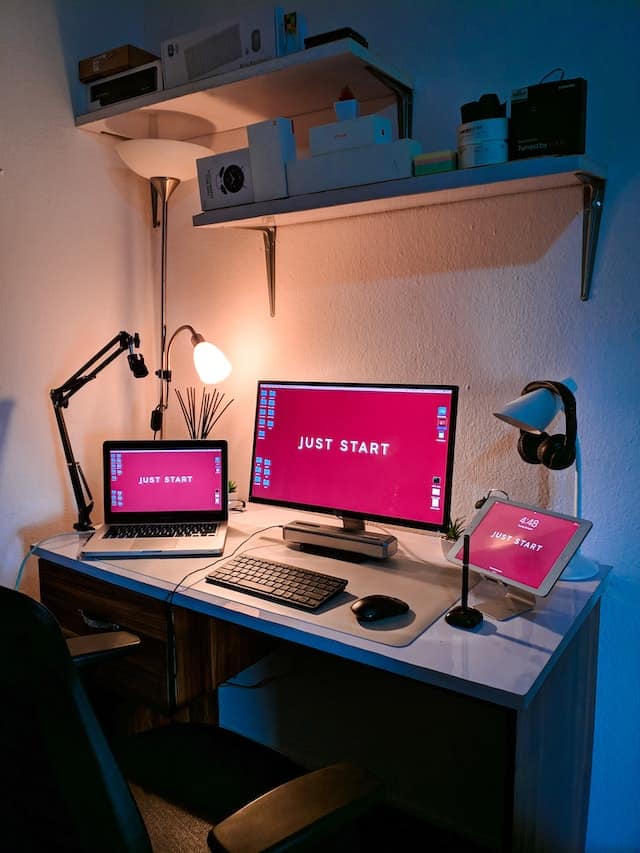
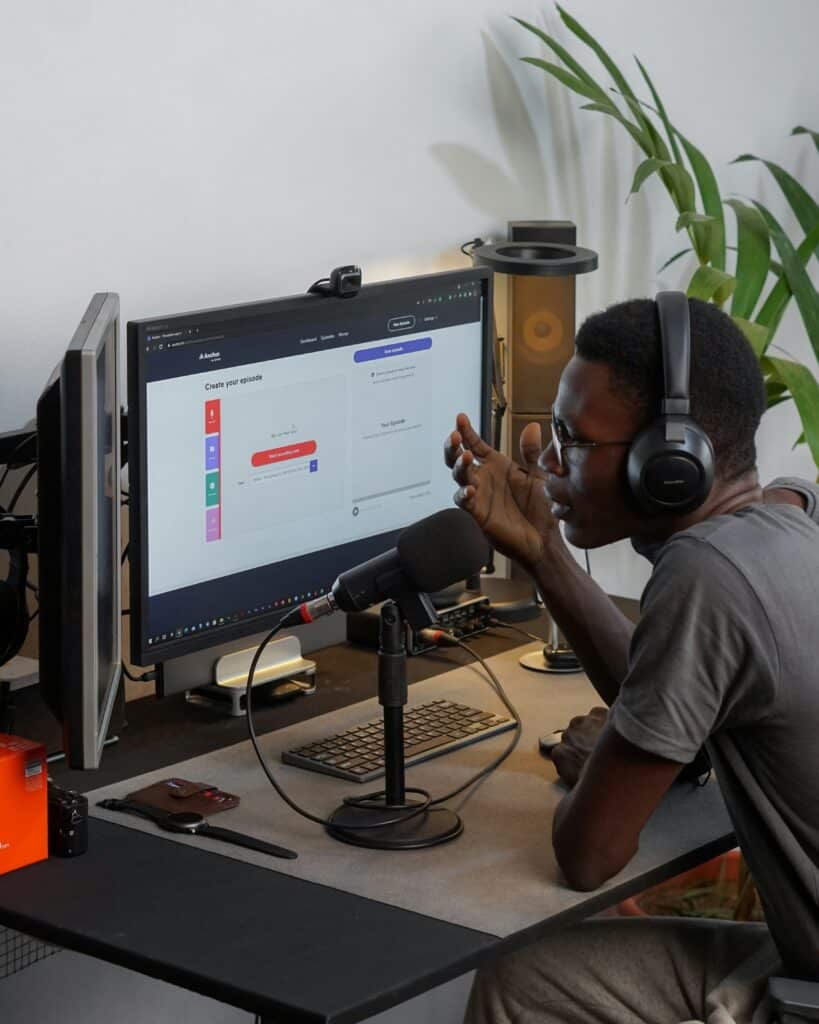
If you have a key person who will be adding a lot of content, then working with 2 screens is an ideal setup – e.g., one screen showing the content you are copying from, and the other screen showing the new site being populated.
We use a laptop attached to two monitors and a separate keyboard – if you have the budget, I’d recommend it.

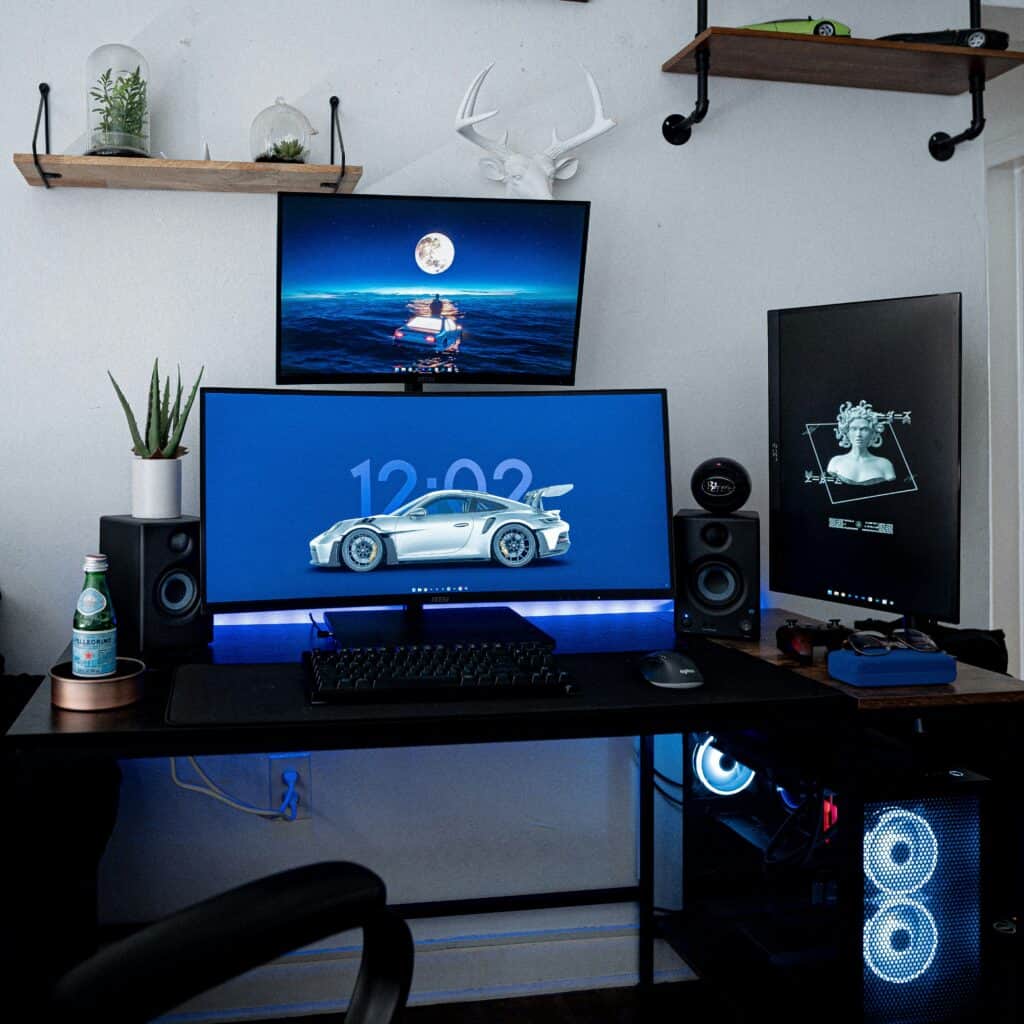
Check guidance so that you have a good, safe workstation, and get the right equipment that supports you.
The following links may be helpful:
- HSE: Working safely with display screen equipment.
- HSE: Working with display screen equipment (DSE)
- HSE: Display screen equipment (DSE) workstation checklist PDF
- HSE: Work with display screen equipment: Health and Safety (DSE) Regulations 1992
- HSE: Work with display screen equipment PDF
- HSE: Working with display screen equipment at home
- ACAS: Managing staff who work from home – Expenses and equipment
- GOV.UK Expenses and benefits: homeworking
Where:
You’ll have to consider if you’ll be in the same room (noise, feedback, number of power points, headphones, etc) and plan accordingly.
When:
When we confirm a mutually convenient date for the Zoom session, the attendees should each block off the following 7-14 days so that they can populate the website utilising the new information they’ve learnt whilst it’s fresh in their minds. Depending on your site, training takes a minimum of 2 hours.
Remember:
You are at the start of your understanding, so bear in mind that you are learning the basics in that time, and you’ll continue to learn and have questions for us. Think back to when you first got a smartphone – it took you a while to get used to it, and it was a steep learning curve. We bet you’re still learning new features and functions even now (especially when they release updates).
Action for you take: Don’t forget about those 6 pages of content!
We’ve mentioned them a few times now and will need them soon.
Your content might be written, a video on your YouTube channel, a podcast, or a PDF that someone will download…
You can find examples in the accordion ‘Weeks 7-8 (build stage starts)’

Action for you take: Did you engage us to populate your site?
If you are paying us to populate your site we’ll need to arrange a deadline for all your finalised content.
Week 6 (end of design stage)
Action for you take: Don’t forget about those 6 pages of content!
We’ve mentioned them a few times now and will need them soon.
Your content might be written, a video on your YouTube channel, a podcast, or a PDF that someone will download…
Important Notes:
Please don’t send things labelled ‘Website‘ ‘Our new website‘ or ‘For the Smith website‘. We know it’s from you, and for your site. It always seems like you have lots of time (you don’t) and that you’ll have no trouble meeting the deadline (you will), and you probably don’t think you need to diarise things (you should). 😉
Keep creating content and reviewing it for accessibility.
These examples are designed to be a rough idea to guide you and not an exact list.
1. Example of content for a ‘Team’ page. One email contains:
A Word document entitled ‘Team Page’
~ Content about the team as a whole – often a short paragraph to introduce the page.
~ A paragraph or two about each person – e.g., their name role, goals for your business, email address and phone number.
Images that have been renamed before sending so that we know who they are (‘35127.jpeg’ doesn’t mean anything)
~Team image – Sharon*
~Team image – Dave*
~Team image – Tarquin*
2. Example of content for an article on a ‘News’ page. One email contains:
A Word document entitled ‘News content – Giant bird seen in Street’
~It should have a title, headers, quotes, hyperlinks, mention of the images (below), and mention of button links if appropriate to your design
Images should be given names we can easily understand:
~News image – Giant bird on tree*
~News image – Giant bird flying away*
3. Example of content for a product (an event, course, resource, download). In this case, it’s for an Event. One email contains:
A Word document entitled (eg) ‘Event content – Mrs Miggins’ pie-eating competition’
~It should have a title, headers (e.g. When, where, parking, access, prices), quotes “Delicious Pies every year – said local resident“, hyperlinks (over-eaters anonymous), mention of the images (below), and mention of button links if appropriate to your design
Images should be given names we can easily understand:
~Event image – Bill Biggun – the winner in 2023*
~Event image – The pies in 2023*
~Event image – The crowd watching the competition in 2023*
4. Example of content for a product (an event, course, resource, download). In this case, it’s for a Download. One email contains:
A Word document entitled (eg) ‘Download content – Top 50 Songs for your congregation’
~It should have reasons why people should engage with the content and download it. Your headers might include “Who will find this useful” and “Why we created this list”. Add a quote from someone who liked it, and a hyperlink to something related. Mention the images (below) especially if you must have them in a specific place (eg the header image or the featured image) and if you have a bio of the person who created the list, we might be able to add that too (or link to your team page).
The document that people will download, with a title that matches it’s purpose
~A PDF called “Top 50 Songs for Your Congregation”
Images should be given names we can easily understand in case you need us to start adding them to media folders:
~image – The Choir of Little St Mary’s on the Wold*
~image – The congregation singing*
~image – Bill and Ted playing guitar*
Weeks 7-8 (build phase starts)
Action for you take: Send us 6 pages of content
We’ll need 6 pages of content from you so that we can test real information. This helps us to ‘snag’ the site ahead of training and find any hiccups in the coding, and it also means that when you first see your site it has genuine content that means something to you. Ideally, choose one page from each area of your site (e.g., news, about us, meet the team, events, services, history, safeguarding, etc)
If you have an existing website and feel that the content needs no alterations, send the URL. If you’re sending six URLs then they can all go in one email.
These examples are designed to be a rough idea to guide you, and not an exact list.
1. Example of content for a ‘Team’ page. One email contains:
A Word document entitled ‘Team Page’
~ Content about the team as a whole – often a short paragraph to introduce the page.
~ A paragraph or two about each person – e.g., their name role, goals for your business, email address and phone number.
Images that have been renamed before sending so that we know who they are (‘35127.jpeg’ doesn’t mean anything)
~Team image – Sharon*
~Team image – Dave*
~Team image – Tarquin*
2. Example of content for an article on a ‘News’ page. One email contains:
A Word document entitled ‘News content – Giant bird seen in Street’
~It should have a title, headers, quotes, hyperlinks, mention of the images (below), and mention of button links if appropriate to your design
Images should be given names we can easily understand:
~News image – Giant bird on tree*
~News image – Giant bird flying away*
3. Example of content for a product (an event, course, resource, download). In this case, it’s for an Event. One email contains:
A Word document entitled (eg) ‘Event content – Mrs Miggins’ pie-eating competition’
~It should have a title, headers (e.g. When, where, parking, access, prices), quotes “Delicious Pies every year – said local resident“, hyperlinks (over-eaters anonymous), mention of the images (below), and mention of button links if appropriate to your design
Images should be given names we can easily understand:
~Event image – Bill Biggun – the winner in 2023*
~Event image – The pies in 2023*
~Event image – The crowd watching the competition in 2023*
4. Example of content for a product (an event, course, resource, download). In this case, it’s for a Download. One email contains:
A Word document entitled (eg) ‘Download content – Top 50 Songs for your congregation’
~It should have reasons why people should engage with the content and download it. Your headers might include “Who will find this useful” and “Why we created this list”. Add a quote from someone who liked it, and a hyperlink to something related. Mention the images (below) especially if you must have them in a specific place (eg the header image or the featured image) and if you have a bio of the person who created the list, we might be able to add that too (or link to your team page).
The document that people will download, with a title that matches it’s purpose
~A PDF called “Top 50 Songs for Your Congregation”
Images should be given names we can easily understand:
~Download image – The Choir of Little St Mary’s on the Wold*
~Download image – The congregation singing*
~Download image – Bill and Ted playing guitar*
*We will use the wording from the name of the image as the ‘alt text’ so that you meet accessibility requirements.
Important Notes:
Please don’t send things labelled ‘Website‘ ‘Our new website‘ or ‘For the Smith website‘. We know it’s from you, and for your site. 😉
It always seems like you have lots of time (you don’t) and that you’ll have no trouble meeting the deadline (you will), and you probably don’t think you need to diarise things (you should). 😉
Keep creating content and reviewing it for accessibility.
Week 9
Action for you take: Will you require a form on the site?
Think about any forms that you might need on your site, for instance:
- Contact Us
- Sign Up (register) for eLearning
- A repeat prescription, or join the surgery
- An Application to Become a Member
When discussing your requirements with us, consider the client/user:
- Who will access the form?
- What options do they require when entering information (e.g. the ability to tick one answer, or tick multiple answers)
- The message they see after submitting the form
- If you want the client to receive an email confirmation
Don’t forget to think about your team:
- What information do you require?
- Do you need to receive a confirmation email when a form has been submitted?
- Who receives that email (consider a generic email address that more than one person can access)
- What information, wording, or links do you require in that email?
- GDPR implications (where the information from the form will be kept)
In the next 7-14 days, we’ll be asking you what you’d like in the registration email, so start making your decisions now.
Data processors (us) are not responsible for the Data Controller’s compliance. While the overall responsibility generally lies with the data controller, data processors also have certain responsibilities under the GDPR. Processors have to carry out the processing operations with the appropriate technical and organisational measures instructed by the data controller or joint controller. In doing so, the processor assists the controller in complying with the General Data Protection Regulation.
Action for you take: Will your site have a brand new URL?
If your site will be using a brand-new URL, then Google won’t have the chance to crawl it so it won’t show up in searches when you launch.
Generally, it takes Google anywhere from 4 days to 4 weeks to index a new website. However, this can vary depending on the size of the website, the quality of the content, and the number of external links pointing to the website. Source
While you’re creating content, we recommend:
- having a good network of links within your site (which helps your clients and SEO) by linking to/from pages and products on the site
- promoting your forth-coming site on your social media accounts, newsletters, in-house bulletins
- telling local media (e.g. newspapers, bloggers, radio stations) that your site is coming to generate interest
- links to and from any related sites you have, and from other people’s sites (known as inbound/backlinks)
- once you go live, add the URL to your email signature etc.
We aren’t involved in SEO as this is an ever-changing area that requires a specialist, however, we can suggest a trusted company if you want to hire someone for assistance with your site’s optimisation.
Weeks 10-11
Depending on the complexity of the site, the build can take about 2-3 months. During that time we won’t be in contact as much as we’ll be busy coding, snagging, and testing (using the pages of content that you provided).
If we haven’t already, we’ll book training any day now.
We like to book this in advance, as your team should block off the following week to start populating the site and using what you’ve learnt while it’s fresh in your minds, and we like to keep our calendar a little more open so that we’re more readily available to answer questions that crop up.
Action for you take: Prep for the training session
If your team will be using 2FA, you must ask them to download an authenticator. There are details on the 2FA page
Take a moment to reread the accordion ‘Weeks 5-6 (end of design stage)‘ to ensure you have the appropriate equipment for the session.
Action for you take: Content
Meanwhile, you should be creating, reviewing, and updating your content, being mindful of accessibility, and considering SEO. If you didn’t consider SEO at the time of the contract, we can recommend a trusted partner.
Action for you take: Registration email
In week 9 we asked you to consider the forms on your site. Typically, if users sign up to your site, it triggers an email. Let us know what wording – and links – you’d like to add to the email.
Week 12 (training, population, snagging)
Action for you take: Don’t forget to refer back to ‘Weeks 5-6’ so that you’re prepared.
We limit the number of people in our training courses to three, to ensure all attendees can engage with the presenter, ask questions, and have an informative experience. A session typically lasts for two hours (depending on your knowledge and the complexity of the site, you may need two sessions).
Including:
- show you how to log in (and set up 2FA if it’s been requested)
- explain the front/back end of the site and options for maximising efficiency when creating content.
- show you the portions of the site that you can control, and how to edit them
- show you pages and posts
- demonstrate effective styling techniques to show you how to enhance content presentation
- use content to demonstrate some text, with use of bold, italics, bullet points, numbered lists, etc
- add headers, hyperlinks, buttons, accordions, and columns to a page, and explain why and when they are best used.
- add images/galleries and reference sites from which to obtain them (including how to upload, naming protocols, alt tags/text etc)
- embed a video
- move content blocks around (if you’re using Gutenberg)
- record the session and provide a link for future reference (you can download the video too)
The list above is not exhaustive, and you must remember that it’s impossible to teach you everything in the time available. Your learning takes place over time and the skills you gain will accrue.
As WordPress offers several ways to achieve a task, there will be variations if different people train you.
Content population.
Start populating the site as soon as you’re trained, while it’s fresh in your memory.
Decide with your team if one person will add pages (e.g. About, FAQs, Meet the Team, Privacy Policy, Cookies, Accessibility, etc), another will add events, and a third will add news. This is dependent on your site’s content, the amount of work, and your staffing levels.
Now that you’re adding your content, you’ll probably come back to us with questions, and we’re here to support you.



Review what you create:
You should review the content you’ve added to the site to ensure continuity of style so that it looks cohesive (not written by numerous people). Many clients refer back to ‘Your Design Notes’ and mimic the style the our design team has illustrated so there is continuity and each page keeps readers engaged.
Snagging:
We have an internal snagging process, and then we add 6 pages of content from you as this means we can see any snags that are brought up by genuine content (this also means that when you first see the site at the point of training you’ll see some of your content on the site).
However, when clients add content, they will often use the site in unexpected ways and this reveals little snags that we haven’t noticed. You typically have two months to report these and we’ll fix them as part of the sales agreement.
The most common snags after training are:
- new content you created in the back end doesn’t show on the front. You’ll need a hard refresh on your device.
- the styling (fonts, colours, etc) is ‘knocked out’. You’ll find the answer on the support page, in the ‘Copy and Paste’ accordion.
If you encounter a glitch:
Check the support page and read the sections to see if you find the answer.
Weeks 13-14 (population and testing)
You might be close to finishing your population now, so ask stakeholders, family, and close friends to test your website. It helps to have a critical eye cast over your work, and some constructive feedback.



Launch date review:
Review your launch date, and if you need to move it, let’s combine our calendars again to arrange a mutually convenient date (we only like to support one client at a time during their launch week).
Social Media:
You might announce on social media if you plan a hard launch, or run a teaser campaign.
Last-minute checks:
You might want to run a dead link checker to ensure each link goes to a live page. If you’re unsure what this is, find the information on the Glossary
Top Tip: Let go of perfection
Don’t let overthinking stop you from progressing. You can always revise and improve your content after you launch, in fact, consistent testing of what works for your users over time is the best way to do it.
Week 15 (launch)
Launch!
Regardless of a soft or hard launch, now is the time when you let the world know about the website. We’re standing by in case of glitches, and we continue supporting those we have trained as they create new content and update the site. Launches typically result in a little flurry of support requests, so we clear our calendars to ensure we are on-hand for only one client at a time.
Week 16
You might start to check your Google Analytics now, to see what pages are the most visited, where your users have come from, or how they found you. This is a chance to review how users ‘flow’ through your site and to see if you can make amendments to get them to find new content, contact you, purchase something, etc.



What next?
Depending on your type of content management system and requirements we might have a contract that maintains the well-being of your site (e.g. updating plugins). Websites are similar to cars and mobile phones – they need maintenance and updates.
Action for you take:
Keep your site maintained:
- update the ‘team’ page if someone joins or leaves
- remove staff from your admin/editors list if they leave
- check for ‘dead links’ (a link to a page that is no longer there, resulting in a 404 or similar).
- add reminders to ensure your standard pages (e.g., your cookies, privacy policy, and accessibility statement) are reviewed.
- review passwords and your security measures regularly
You should diarise reviews of your site with us to ensure you’re staying fresh and current (e.g. change your old Twitter logo to the new version, add some functionality, tweak the layout, update your branding, logos, favicon, etc).
Other pages you might find useful:
- If you add additional stakeholders after the project starts it can cause a delay, and we might need to review the overall time and cost. ↩︎