Support
As one of our clients, we don’t expect you to have any problems with our products once we have delivered them to you. However, when it comes to using computers, handheld devices, and software, there will always be frustrations and things that don’t go quite right, and we’d like to help.
You might need to know how to copy and paste correctly, how to take a screenshot, information about 2FA, or to check advice about passwords.

Troubleshooting checklist
Although we take many precautions when building (and maintaining) sites to make them robust on common browsers, the settings on an individual computer can cause a website to display incorrectly. This is something that we often can’t control, but you can make some simple checks to start the diagnostics. To mitigate local errors (as well as save time and money), follow the list below as you will often be able to diagnose or fix the concern yourself.
If you’re unsure about the words or phrases we use, check out our Glossary
1
Is your browser up to date?
Go to www.whatismybrowser.com If it needs updating they provide instructions.
Using a mobile? Go to https://www.whatismybrowser.com/guides/how-to-update-your-browser/
Why:
Our team knows that despite frequently shutting down our devices and having ‘auto updates’ to our browsers, they don’t update as expected!
Example:
Chrome updated on 01.04.25, but I discovered my browser was out of date on 04.04.25, three days later!
2
Clear your cache
Try a ‘hard refresh’ to clear the cache. Details are on www.creativestream.co.uk/hard-refresh/
3
Try a different browser:
Ask a colleague who uses a different browser to check the webpage. If they can see it, then the problem is likely to be the browser you’re using.
You could use your mobile phone. An iPhone typically uses Safari, so if you’re using an Edge browser on your laptop, using your mobile phone can help diagnose if it’s a browser issue.
Download a different browser to your computer (e.g. if you use Chrome, then download Firefox, Edge, etc) and check what happens when you go to your site/page on that browser.
Why:
Every browser (Firefox, Safari, Edge, Chrome, etc) will display the website differently: when the supplier updates it, it can cause knock-on effects on the instructions we have given it, in regards to displaying your site. We won’t know it requires fixing unless you inform us.
Example: Here’s an example of four popular browsers – one has a problem showing a website (April 2025).
If you cannot access the web page using different browsers, then the problem lies either in your device/settings, or your internet/WiFi.
It’s also worth trying an incognito/private browser, and note what you experienced. If you don’t know how, go to How to go incognito in Chrome, Edge, Firefox, and Safari
If you’re still reading, then the problem is likely to lie in your device settings, internet, or something your IT team has implemented.
4
Check who is affected
Go to https://downforeveryoneorjustme.com/ to see if everyone is affected (globally) or just you.
- If it’s down for everyone in your business: it could be your internet, or maybe your IT Team has black listed the site.
- If it’s down for everyone globally: please go the accordion ‘My website is down‘.
- If it’s only down for you: you need to work out if the problem is your internet, device, or settings. The following will help you.
Option One – you have colleagues (either in the same office, or remotely):
Ask colleagues to help. Ideally, someone who meets all three criteria below:
- using a different type of device (e.g., you’re on a PC, find someone with a Mac device)
- using a different internet source (e.g. you’re in the office, ask someone working remotely).
- using a different browser (e.g. you’re using Edge, and they use Chrome).
Option Two – you don’t have colleagues
Use your mobile phone.
- Ensure you are linked to the WiFi. If you can access the web page, the problem is likely to be settings in your computer or something your IT team can help you with.
- Now turn your mobile phone’s WiFi OFF (so you use your mobile data). If you can access the web page, the problem lies in your computer’s settings or your internet/WiFi. Ask your IT team if they have blacklisted the website.
Now that you’ve run some basic diagnostic checks, you have one likely outcome from the options below:
My colleague is not experiencing the same issue:
If your colleague is unaffected (for instance, they can see the content and you can’t), then it might be a setting in your device (computer), and we are unlikely to be able to advise you. Below are some common causes:
- Blocked by the system administrator
- Browser Security Settings
- Business Network Restrictions
- Wireless Hotspot Blocks
- Ad blocker
- Firewall
- Office 365 settings – for instance, if you see something like safelinks.protection.outlook.com then read all the information – including any in the accordions – on the Microsoft page Enable or disable security alerts about links and files from suspicious websites
We’d still like to know what you’re experiencing, contact us with the information you’ve gathered.
My colleague is experiencing the same issue:
If the glitch remains, we need to take action for you. Firstly, assess the level of concern:
Urgent (to you): Something is preventing you from performing a task (e.g., “I’ve rewatched our training session, and I’m following the instructions in the video but it’s not working. Snoop Dog and his mother are visiting our fete tomorrow and he said he’d link to our site from his social media, so we need to complete this task ASAP”)
Important: Similar to ‘Urgent’, but the timespan you have to complete the task is longer.
Query: Regular questions (e.g. “I’m trying to create something that isn’t in the design and we haven’t done it before – how do I do this?)
Please continue reading – we require additional information from you in order to address this matter promptly.
The following information is vital for us to start diagnostics and rectification:
5
Confirmation
Tell us the results from the checks above. This speeds up diagnostic time and keeps costs down for you.
6
The URL of the page (on the live site, and in the back end).
This is the single, biggest thing you can do to help us speed up our diagnostic time to resolve the glitch, and it minimises confusion.
The URL is found at the top of the webpage – for example, the URL for this page is https://cs.isarriving.com/support/
7
A screenshot
We need a screenshot of the WHOLE of your computer screen with the discrepancy, including your tabs and taskbar (not just the page on your website). We have to see the taskbar at the bottom with all the icons for your mail, browser, Zoom, Teams, Word, Excel, etc, all the way up to the tabs at the top (and the menu bar if you use Mac), please!
An example of what we need to see (you might need to scroll up/down to see it all).
8
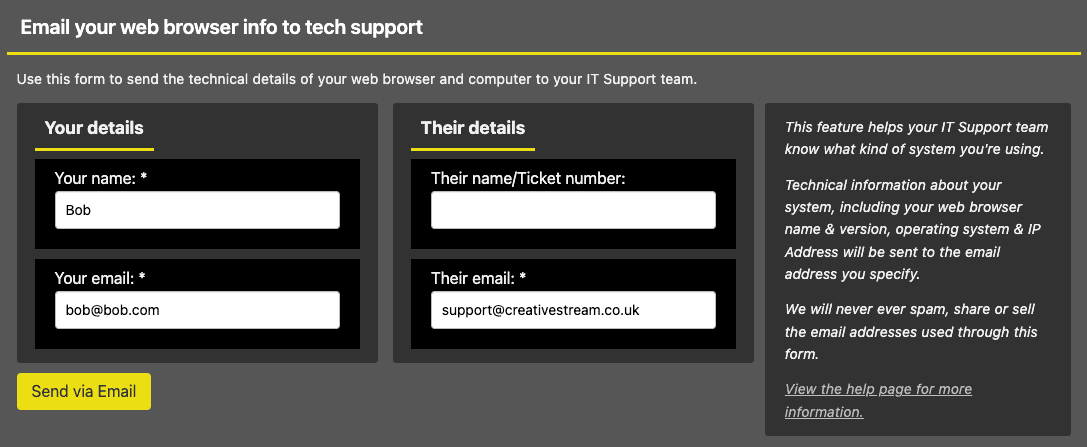
We need information about your device, browser, etc. This takes less than one minute.
- Go to https://www.whatismybrowser.com/
- Click the green “Via Email” button.
- Add your name/company name and your email address
- In the “Their email” field, add support@creativestream.co.uk
- Click the yellow “Send via email” button.
9
Let us know the permission(s) of the affected person(s)
Does it affect admins and editors, or the users of the website? It helps if we know the details of the users (such as their username and email address). We will use the information you provide to recreate the glitch so that we can diagnose and resolve it. We won’t contact your clients.
10
Read ‘When things go wrong‘ then email support@cs.isarriving.com
Clients can’t see some content?
Common causes:
- Does the client need to be logged in to see it?
- Does the content require a role permission to see it (e.g. Lay preacher, Churchwarden)?
- Does the content require a membership level to see it (e.g. do you use Paid Membership Pro)?
- The link (URL) is incorrect.
- If the client can see the page/product – but not a specific part of it – check if they are zoomed in/out and that the browser fills the screen.
Note: If your client can’t see your whole website, ask them to go to https://downforeveryoneorjustme.com/ to check if the problem is localised to their device/settings.
1. Check the client information:
- Email address: Is it on the system, and are they using the correct account (some users have multiple accounts)?
- Role permission(s): Do they have the correct role permission e.g. Lay preacher, churchwarden?
- Membership level: Do they have the correct membership level(s)?
- Membership payment: Is their payment up-to-date (you may have to check an external system such as Stripe)?
- If no role permissions or membership apply, try viewing the page/product in incognito/private mode in your browser so that you don’t see it with your admin permission.
- Some sites have ‘Log in as client’ enabled. Use this to check if you can see the content when you are logged in as them. If you don’t have this option, create a fake client, add the same role and/or membership permissions, and check if you can see the content.
If it works for you (when you used ‘Log in as user’ or when you created a fake client), the glitch may lie in the client’s device and/or settings.
2. Check the page/product information:
- Role permission: Does it have the correct role permission(s)? Typically, it’s visible to all by default (if you have ticked all the role permission boxes you might be hiding it from other users).
- Membership level: Does it have the correct membership level(s)?
- Link (URL): If the client is getting a 404, then check for typos in the link. Does it go to the correct page/product?
- Is it published correctly: have you ‘privately published’ it, so that only admins can see it?
- Have you toggled on ‘No Index’ by mistake?
3. What your client can do:
If the above checks show that everything is in order, then the problem might lie with the client’s device (their computer or mobile phone), the device’s settings (e.g. a security setting), their internet/WiFi connection, or the browser they’re using (maybe it needs updating).
You might want to use the following as a basis for your client to work through (you should amend it to suit your business and the situation).
We have checked our systems but were unable to replicate your experience, so your assistance will be invaluable in diagnosing this problem. Please can we trouble you to try the following steps and let us know what happens?
- Check if it’s unique to you: Go to https://downforeveryoneorjustme.com/
- Check your browser is up to date: Go to www.whatismybrowser.com and it will tell you if it needs updating (the page also provides instructions if you’re unsure). If you’re using a mobile, go to https://www.whatismybrowser.com/guides/how-to-update-your-browser/
- Clear your cache: Try a ‘hard refresh’ to clear your cache. Details are on www.creativestream.co.uk/hard-refresh/
- To help rule out your device: Please access the page using your mobile phone instead of your computer (or vice versa).
- To help rule out your internet: Mobile phones are often set up to automatically use your office/business internet via WiFi. Please disable the wifi (temporarily) on your mobile and use your mobile data instead to help rule out your internet as the cause.
Note: If your contract is for broadband internet in your home and on your mobile phone, they might both be affected, so please go to your provider (e.g.) Virgin Media, BT or Sky account or use websites such as DownDetector - To help rule out your browser: Updated functionality in a browser (Chrome, Edge, Firefox, Safari, etc) can occasionally cause a problem. Please download a different browser (e.g. if you use Chrome, then download Firefox). Wiki has instructions on downloading different browsers to PC and MAC and there is also a video of how to download a different browser Don’t make it your default browser, because you’ll probably want to carry on with your ‘go-to’ browser after the test. Once you’ve downloaded it, open it and go to the page on the website using the (new) alternative browser.
Note: Microsoft Edge and Google Chrome are both Chromium-based browsers, and share the same underlying technology (Chromium), so if you’re using Chrome and need to download a different browser, please try Firefox.
We need to know the results of the steps above (especially if they solved things) so that we can pass the details on.
We might ask you to go to www.whatismybrowser.com and click the green ‘Via Email’ button. You’ll see a form similar to the one below. Add your name/email address, and send it to support@cs.isarriving.com
Copy and Paste
If you’ve ever copied text from a website to an email, you may have noticed that it keeps the font style (including the colour, weight, etc) from the website, overruling your chosen email font.
This is because the pasted text can use whatever formatting the ‘source document’ used, which can have knock-on effects (e.g., on the font, links, colour, etc). Your source document might be a PDF, another website, an email, a Word document, a PowerPoint Presentation, etc. In a nutshell, any source document that you copy from could cause a glitch.
Prevention:
You can copy things as you’ve always done, but pasting must be done slightly differently
- PC: CONTROL + SHIFT + V
- Mac: Command + Option + Shift + V
Using a Windows keyboard on a Mac? The Windows key is used instead of the Command key, and the Alt key is used in place of the Option key.
You can also use ‘Special Paste’ if you have the functionality in the ribbon below the URL of your browser (if you can’t see it, you don’t have it)
How to take a screenshot
If you’re sending it to us, we typically need the WHOLE of your computer screen (not just the webpage). We need to see the taskbar at the bottom with all the icons for your mail, browser, Zoom, Word, etc, all the way up to the tabs at the top, please! A screenshot helps us see the entirety of what you see.
How to take a screenshot on Windows 10 and 11
How to take a screenshot on Mac
Mac, Windows, Chromebook, and More: How to Take a Screenshot on Any Device
Plugins and Updates
You might have seen a red circle and a number inside it on your site, prompting concern about updates.


You typically have a maintenance contract with us for this exact reason, so please let us carry out updates and work on plugins.
We receive regular emails from the site and its security tools, so your site is monitored to ensure that all plugins will work harmoniously and that the bespoke code and theme will continue to work as intended.
When updates are recommended, we assess the merits and usually hold off updating to the latest version too quickly. Updates often have little bugs, and it’s typically a smart move to wait. Bugs can be discovered by those who update quickly, and they can report them to the supplier to iron them out. Then we act and check your site for compatibility and smooth running.
It’s similar to updates on iPhones: an update is released, and then over the following days, people note little flaws and report them (or take them to social media), and then a new update is released to fix the bugs. The last notable update bug was when iPhone and iPad users reported personal and sensitive images reappearing – even on wiped and sold devices.
Planned updates are scheduled to be carried out throughout the year, but we also respond to critical and/or security updates.
My website is down
This is very rare, hence it has a lower spot on this page.
1
Go to https://downforeveryoneorjustme.com/
If it’s down for everyone, then call us immediately.
If it’s only down for you, check if your IT team made any changes that could affect it (system settings, firewall, etc) then call us with that information.
2
Go to https://www.stackstatus.com/
- If all systems are operational, you should check the information in the accordion labelled “Troubleshooting checklist?”
An example of StackStatus when all systems are operational - If a problem is noted, our team are already working on it and will post updates there in real time.
An example of StackStatus when there is a problem - You must refresh the StackStatus page to see updated information.
- We might send a generic reply to clients who contact us to let us know their site is down. This frees up valuable time so we can concentrate on resolving the problem.
Will you charge us?
Most clients with a WordPress site have a maintenance contract with us, and we can use that while we resolve things for you.
If you don’t have a contract then we take each inquiry on a case-by-case basis, but typically, we’re happy to spend 15 minutes investigating your concern to make a short assessment and let you know a diagnosis, with an estimate on time/cost.
Email support
We have a separate page with email support for clients who have their email services through us.