
Passwords
Websites, social media platforms, and email accounts are rarely hacked. One of the main vulnerabilities lies in weak passwords. Whilst we are not specialists in this area, we have collated information that may help, and we encourage you to read and share this page with your colleagues. It is updated frequently, so we recommend bookmarking it and checking back regularly to remain informed.
Please contact us if we can add to this page. We are not responsible for external links.
News 19.06.25: 16 billion leaked passwords and other login credentials (source: Forbes.com)
What do you need for a good password?
Security experts differ, but the broad consensus is at least 12 characters, but more is better, using upper/lower case, special characters (%$?!” etc), and numbers. However, this is only the start of the measures you need to take…
Don’t use these…
Don’t use any of the following in your password:
- Sequential numbers, such as 123, 6789, etc
- Repeated numbers, such as 777, 333, etc
- Your month or year of birth, such as 2002, or a recent/current year (e.g.) 2024
- The month/year of birth of a loved one, family member, child etc
- Qwerty, Q1w2e3r4t5, etc
- p@ssw0rd, Password, Password1, etc
- Admin, Adm1n, Adm!n, etc
- Welcome, W3lc0me, Welcome1 etc
- 1Q2w3e, or similar
- Your name, or name of the person that you fancy.
- Your pet’s name (including that of a deceased pet)
If someone were attempting to gain access to your password, they may input the information provided into a software program, along with any additional information obtained through social engineering. This program is designed to expedite the process of identifying common passwords that individuals are likely to use, such as those above.
Recycling
People use the same password for multiple accounts, such as email, social media, their work, and their bank. This is commonly referred to as ‘password recycling’ and poses a significant security risk.
It’s crucial to establish unique passwords for each account, as once a password is compromised on one platform, it can potentially be used to access other accounts as well.
In addition to avoiding password reuse, it is important not to use the same password methodology across multiple accounts. The examples below illustrate common instances of this practice.
- Sainsbury_Shopping579!
- H&M_Shopping579!
- Amazon_Shopping579!
- Aldi_Shopping579!
- M&S_Shopping579!
Password Managers
If you can’t memorise different passwords for different things:
If you’re overwhelmed by the number of passwords you need, an option is to get a password manager. Wired published an article about the best password mangers in December 2023.
Note: A password manager doesn’t negate the need for secure, unique passwords – it just means you don’t have to memorise them.
Check if your password is secure
Security.Org have built a free tool that can help you assess your password with their Password Checker Tool
https://www.security.org/how-secure-is-my-password/
When you’ve checked it, remove anything in your password that is in the red list above and try the remaining letters/numbers/characters again.
• For instance, if your password is 123Qwerty456! then at first sight it would take a few billion years to crack.
• Once you remove ‘123’ and ‘Qwerty’ (because they are in the red, forbidden list, above) it takes milliseconds to hack your password.
Passkeys
ZDNet wrote an article in May 2024 called “What are passkeys? Experience the life-changing magic of going passwordless” which provides information
Changing your password
McAfee‘s page has some valuable information and suggests you change your password every three months.
Kaspersky suggest you change your password every few months
The scary facts
How quickly are things changing?
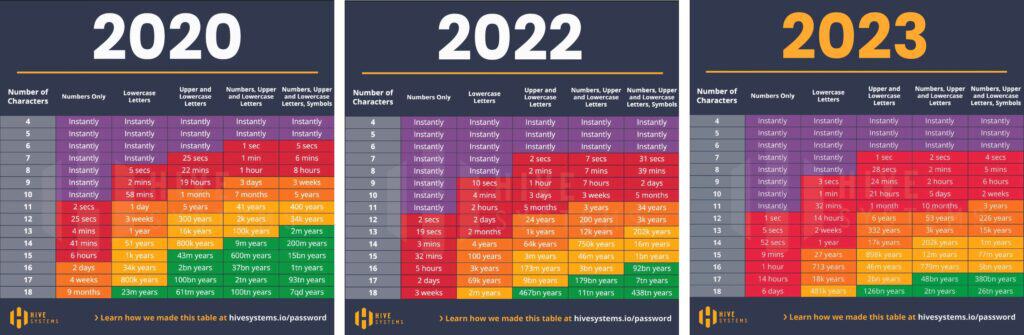
The 3 screenshots below (from Hive Systems, the cyber security company) show how quickly things are moving, and why you need to update the measures you take to have a good password.
You’ll notice that between 2020 and 2022 the time it took to brute force a password of 10 characters (numbers, upper/lower case, and symbols) fell from 5 years to 5 months. In 2023, that same password took only 2 weeks.
We have chosen not to show the data for 2024, as it doesn’t compare like-for-like, and might mislead our clients into thinking things are safe.
Click on the image below to enlarge it.
Please visit Hive Systems for the latest information.
The ICO has a page for Data Security Incident Trends which contains information on data security breaches that have been reported to them and was updated in January 2024
Other things you should do
- Request that employees promptly notify you of any abnormalities detected on your website or any potential risks identified within your systems.
- Lock your device when you walk away from it (e.g. in your office). On a Mac, click the apple in the top left of the screen and choose ‘lock screen’ from the drop-down. On a Windows device, use the Windows key and the L key to lock it.
- Don’t use public wifi. One study noted that 40% of respondents had their information compromised while using public Wi-Fi One of the risks is called ‘The Man in the Middle’ where a fake Wi-Fi hotspot picks up signals from a legitimate Wi-Fi to transmit an identical signal. This allows hackers to position themselves between the user and the service to read the user’s emails, see the websites they are visiting, or steal their personal information, e.g. passwords, and account information. Source
- Don’t forget passwords for logins to associated sites that support your website, such as 123-reg, social media, MailChimp/MailGun, Google Analytics, Google (for maps etc as you have a credit card attached), Stripe, PayPal, Moodle (inc. the login for the theme), EventBrite, ChurchEdit, etc (this list is not exhaustive).
- A regular audit of who has access to your website (admins, editors, etc). Remove those who no longer require access (please read “Deleting/removing admins”, below).
- Check that your HR paperwork includes the removal of website login credentials for departing staff members (please read “Deleting/removing admins”, below).
Remove/amend permissions of ex-staff
If someone is leaving your team, you have two options:
- You can amend the permission they have (e.g. remove their status of ‘admin’, ‘shopkeeper’, ‘author’, etc and make them a subscriber)
- Remove them completely
Amending their permission(s)
Go to ‘Users’ in the back end, and hover over the user to see the additional options (see image below). Click ‘Edit‘.
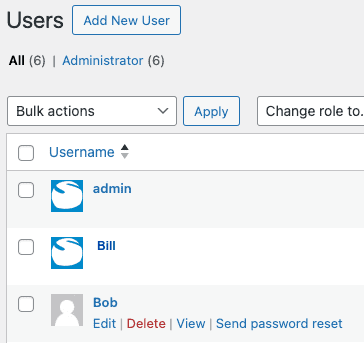
You can now see all editable options.
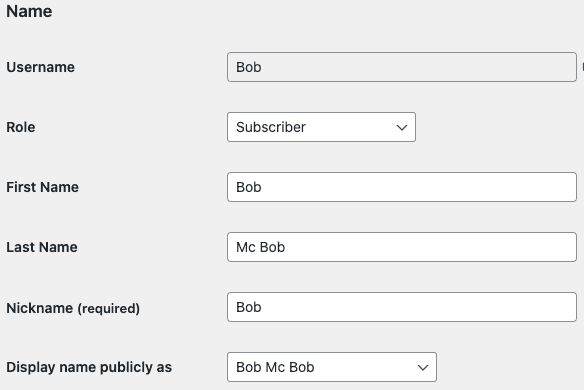
Note: On newer sites, the ‘Role’ information is lower down on the page (not as shown below), and uses checkboxes, not a dropdown.
Scroll to the ‘Name’ section. Click on the ‘Role’ dropdown
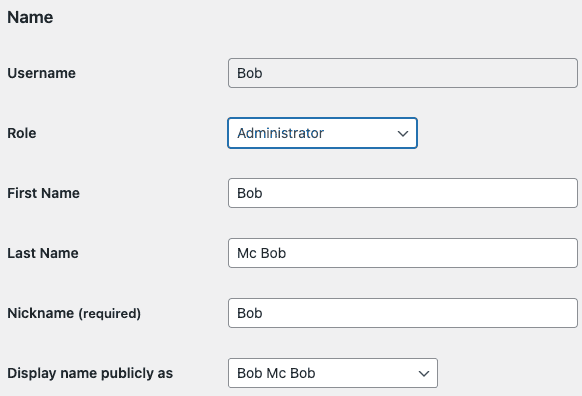
Change their permission from (eg) ‘Administrator’ to ‘Subscriber’
Click the blue ‘Update User’ button at the bottom of the page.
Deleting admins
Warning: If you delete an admin from your WordPress site, you must assign the content/media they have added to another admin. If you do not assign the content correctly, it will be deleted, and pages/posts/media on your WordPress site will be lost. If you are unsure, please call us.
Go to ‘Users’ in the back end, and hover over the user to see the additional options (see below). Click ‘Delete‘
Below left: ‘Delete all content‘ is currently chosen. If you click the blue “Confirm Deletion” button, all the content (pages, posts, images, files, PDFs, etc) that Bob created or uploaded will be removed from your WordPress website when the user ‘Bob’ is deleted. Pages can sometimes be replaced, but media (images and files) require extensive, time-consuming work. Use this option only if you are sure!
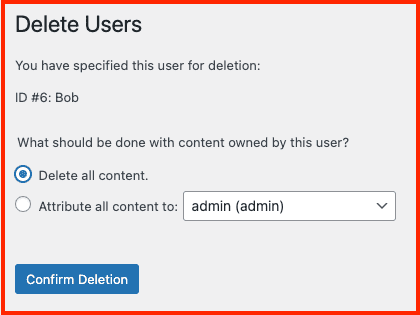
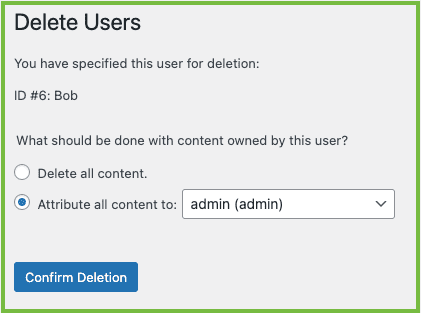
Below right: ‘Attribute all content to‘ is chosen.
An admin has been selected from the dropdown list.
Pressing the blue “Confirm Deletion” button will attribute all the content (pages, posts, images, files, PDFs, etc) that Bob created or uploaded to ‘admin’, and Bob will be deleted as a user.
If you are in two-minds, choose this option.
2FA/MFA
We have a page dedicated to 2FA
Preparing for if things go wrong
You must have a plan in place to address possible outcomes quickly. The following is to encourage you to research what action you must take – it is in no way intended to be a guide.
GDPR breaches must be reported within 72 hours. The ICO has a guide: 72 hours – how to respond to a personal data breach
In the UK, the ICO is the governing body of data breaches. The following links may be a helpful starting point for you.
What breaches do we need to notify the ICO about?
Self-Assessment tool – do I need to report it?
Personal Data Breach examples from the ICO
Report a breach
Report a breach – personal data breach
Who should do this?
In the case of a personal data breach, the controller shall without undue delay … notify the personal data breach to the supervisory authority competent in accordance with Article 55… Source
Who/what is a data controller or a data processor?
- The data controller determines the purposes for which and the means by which personal data is processed. So, if your company/organisation decides ‘why’ and ‘how’ the personal data should be processed, it is the data controller.
- The data processor processes personal data only on behalf of the controller. The data processor is usually a third-party external to the company. Source
Typically, the Data Processor is Creative Stream, and the Data Controller is you.
Password doesn’t work?
Typically, this happens when people copy/paste passwords because they can unknowingly copy a space, which a system can think is a character in your password, making it incorrect.
Suppose my password is Coffee55&Biscuits99!

When I highlighted the password, it added extra spaces at the end (above, highlighted in blue), which I would then paste when I log in. Those spaces can cause the system to think the password is incorrect, so try typing your password manually (and check you don’t have caps lock on).
- If you’re using a WordPress CMS, you can also click on ‘Forgotten Password’ at the point of login
- If you’re on a GP or Parent Carer website, any other admin can set up a new password for you (which you must change when you next log in).
It also happens when you update your password and it saves in your browser, and you then log in on a different device/browser. Information about this is in another accordion on this page.
Saving passwords in browsers
Here’s a general guide for accessing saved passwords in common browsers. Don’t forget to update all your devices when you change your password (e.g. your work computer, mobile phone, laptop at home, etc).

Chrome
Go to the Settings menu
three dots in the top right
Click Autofill
Click Passwords.

Safari
Go to Settings
Click Passwords
You’ll be able to view your saved passwords.

Microsoft Edge
Go to the Settings and More menu
three dots in the top right
Click Settings
Click Profiles
Click Passwords

Firefox
Go to the Settings menu
three horizontal lines in the top right
Click Privacy & Security
Click Passwords and Forms
Click Saved Passwords
Other pages you might find useful:
Social Engineering
Social engineering is the art of manipulating, influencing, or deceiving you into divulging personal or confidential information to gain control over your computer system. It’s a method used to gather information that may lead to obtaining passwords – or elements of them – that can be used to refine the search for the full password.
The person might use the phone, email, snail mail, a quiz, or direct contact to gain information.
Want to see how easy social engineering can be?
Watch this video to see one method of social engineering that enabled the interviewer to obtain passwords quickly by the interviewer, despite some individuals being aware of the purpose of the interview. Other methods – such as games/quizzes on social media – can also be utilized in social engineering tactics.
Social engineering can also be a concern on social media platforms. Examples include simple quizzes and games, and those that encourage you to comment (e.g.) “Your Downton Abbey name is Lord/Lady, followed by your pet’s name, then your mother’s maiden name, then add the town you were born in.” So you might comment “Ha ha – I’m Lord Fido Jackson of Skegness“.
It is advisable to exercise caution when sharing personal information online. It is recommended to refrain from disclosing details such as location, travel plans, financial details, or personal identifiers like name, address, phone number, and date of birth.